In the world of Windows 10, smooth performance is key. However, many users have encountered a common nemesis – the WMI Provider Host (WmiPrvSE.exe) hogging CPU resources and wreaking havoc on their systems. In this comprehensive guide, we will navigate through the labyrinthine landscape of WMI Provider Host high CPU usage, offering you a complete toolkit to resolve this issue and restore your Windows 10 to its peak performance.
Understanding the WMI Provider Host
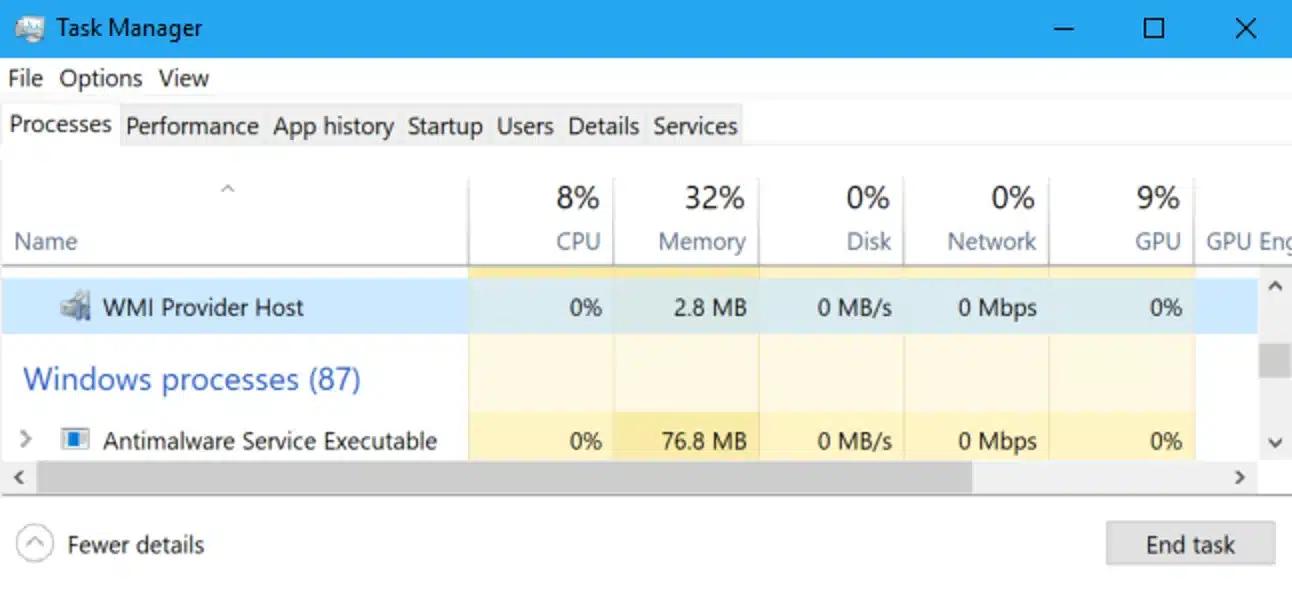
What is WMI Provider Host? The enigmatic WMI Provider Host (WmiPrvSE.exe) plays a pivotal role in any Windows operating system. It quietly runs in the background, allowing programs on your PC to request and retrieve vital data or information about other programs. Without the WMI Provider Host, managing any computer program would be an arduous task. Ideally, the WMI Provider should operate without sapping CPU resources. Unfortunately, some Windows users find themselves grappling with elevated WMI activity, which translates into high disk usage errors. This, in turn, leads to excessive CPU heat and system unresponsiveness.
Troubleshooting Steps
Method 1: Repair Corrupted Files
If your Windows system harbors corrupted or missing files, it can wreak havoc on system stability, resulting in the dreaded WMI Host High CPU usage. Follow these steps to rectify the situation:
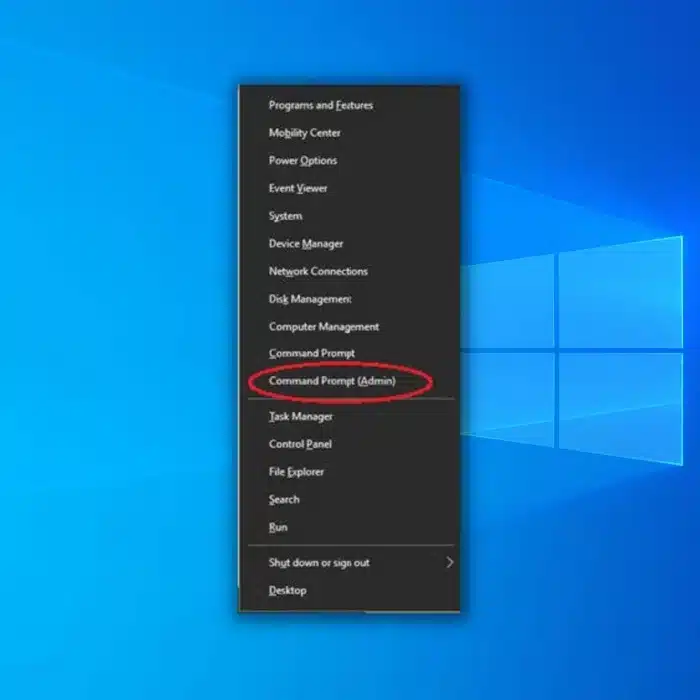
- Press the Windows key + X on your keyboard and select "Command Prompt (Admin)."
- In the Command Prompt, type "sfc /scannow" and hit Enter.
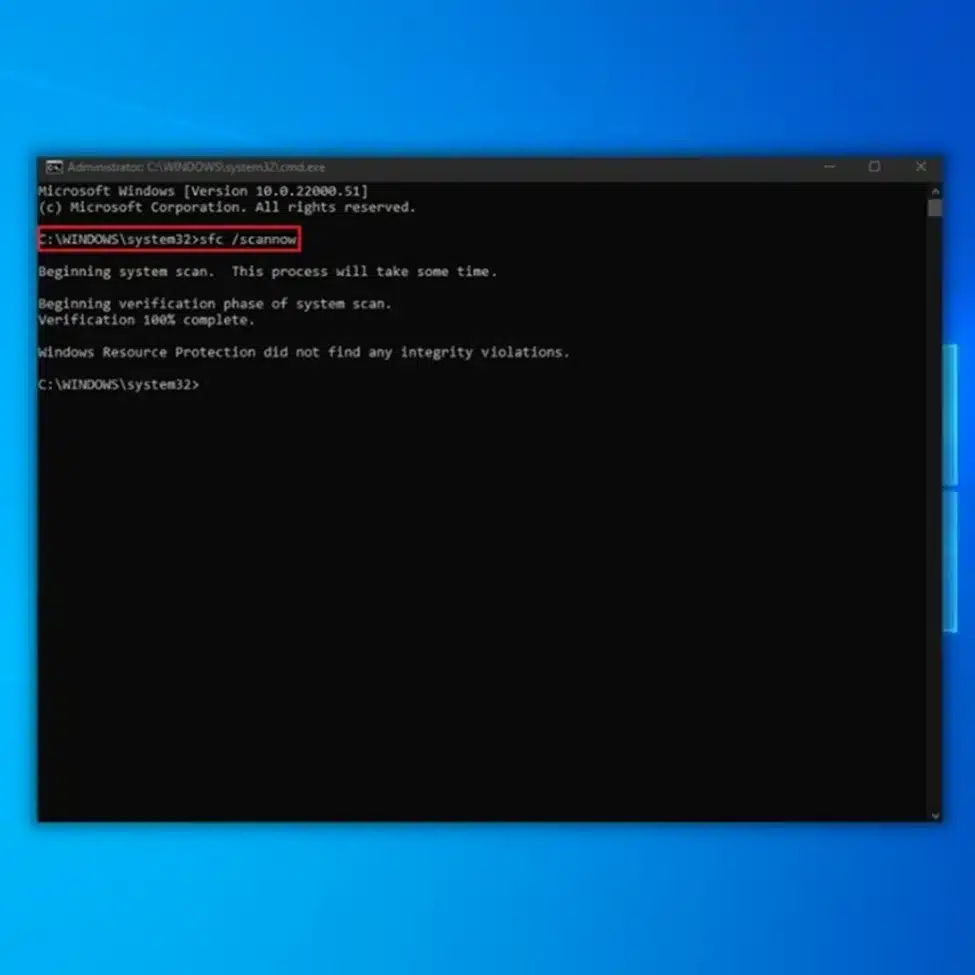
- After the scan completes, a system message will appear, providing crucial insights:
- "Windows Resource Protection did not find any integrity violations": Your operating system is free from corrupted or missing files.
- "Windows Resource Protection could not perform the requested operation": A problem was detected during the scan, necessitating an offline scan.
- "Windows Resource Protection found corrupt files and successfully repaired them": The SFC has fixed the detected problem.
- "Windows Resource Protection found corrupt files but was unable to fix some of them": If this error occurs, you must manually repair the corrupted files.
Pro Tip: Run the SFC scan two to three times to ensure all errors are addressed.
Method 2: Restart Windows Management Instrumentation Service
Restarting the Windows Management Instrumentation (WMI) service is a potent solution to tackle WMI Host High CPU usage. If the WMI provider host exhibits unusual behavior and consumes excessive system resources, follow these steps:
- Press the Windows Key + R and type "Services.msc."
- In the Services window, locate "Windows Management Instrumentation."
- Right-click on "Windows Management Instrumentation" and select "Restart."
- Reboot your computer and monitor CPU resource usage.
Method 3: Fix High CPU Usage via Elevated Command Prompt Window
In certain cases, WMI Host High CPU usage can be mitigated by performing the following steps:
- Press Windows Key + R and type "command."
- Click on "Run as Administrator."
- In the prompt window, enter the following commands one by one:
net stop iphlpsvc
net stop wscsvc
net stop Winmgmt
net start Winmgmt
net start wscsvc
net start iphlpsvc
- Check the Task Manager for WMI's CPU usage.
Method 4: Perform a System Scan
Malware and viruses can also contribute to WMI Provider Host high CPU usage. To address this potential culprit:
- Press the Windows key + S and search for "Windows Defender."
- Open Windows Defender.
- In the scan options, select "full" and click "scan now."
- Wait for the scan to complete, then reboot your system.
- Check CPU usage to see if the WMI Provider Host high CPU usage issue is resolved.
Method 5: Fix WMI Provider Host Error By Performing A Clean Boot
Isolating the application responsible for excessive CPU usage is crucial. A clean boot helps identify the culprit:
- Log in as an Administrator and press "Windows" + "R" to open the "RUN" prompt.
- In the dialog box, type "msconfig" and press "Enter" to open the system configuration window.
- Click on "Services" and uncheck the "Hide all Microsoft Services" option.
- Click "Disable All" and then "OK."
- Click on the "Startup" tab and select "Open Task Manager."
- In Task Manager, click on the "Startup" button.
- Disable each application with "Enabled" status.
- Restart your computer.
Your PC is now in a "Clean Boot" state. Monitor for any recurrence of the WMI Provider Host high CPU usage error. If it reappears, gradually re-enable services to identify the root cause. Also read: How to turn off do not disturb on iPhone
Method 6: Use Event Viewer
Event Viewer is a valuable tool for diagnosing errors in your PC:
- Press Windows Key + X and select "Event Viewer."
- Under the View menu, check "Show Analytic and Debug Logs."
- Navigate to Applications and Service Logs > Microsoft > Windows > WMI Activity > Operational.
- Select any available errors and examine additional information.
- Look for the ProcessId and take note of its value.
- In Task Manager (Ctrl + Shift + Esc), check the PID for all running services.
- If a service matches the value from Step 4, remove the associated application.
- Alternatively, right-click the service and choose "Stop" to disable it.
Method 8: Disable HP Software Framework Service
For HP device users, disabling the HP Software Framework Service may resolve the WMI Provider Host high CPU usage error:
- Press Windows Key + R and type "services.msc," then press Enter.
- Locate "HP Software Framework Service" and double-click it to open its properties.
- Set the Startup type to "Disabled" and click "Stop" to halt the service.
- Apply the changes and reboot your system.
Note: Disabling this service may impact the functioning of HP Wireless Assistant, so consider disabling it as well if needed.
Method 9: Perform a Clean Installation of Windows 10
If the WMI service persists in consuming excessive CPU resources after attempting the above methods, the final resort is a clean installation of Windows 10:
- Back up all your files.
- Perform a fresh Windows 10 installation.
For detailed instructions on clean installation, refer to our guide on Performing a Clean Install in Windows 10.
Conclusion
Resolving the WMI Provider Host high CPU usage issue requires patience and a systematic approach. By following the methods outlined in this guide, you can regain control of your Windows 10 system and enjoy smooth, hassle-free performance.