Anúncios
In the dynamic world of tech, where passwords alone no longer suffice, activating two-factor authentication (2FA) has become a non-negotiable step for account security. In this guide—tailored for the audience of ADCOD—we’ll walk you through what 2FA is, why it matters, and how to set it up on some of the most popular services. Whether you’re a home user, tech enthusiast, or professional, you’ll gain practical steps to immediately boost your security posture.
What is Two-Factor Authentication and Why It Matters
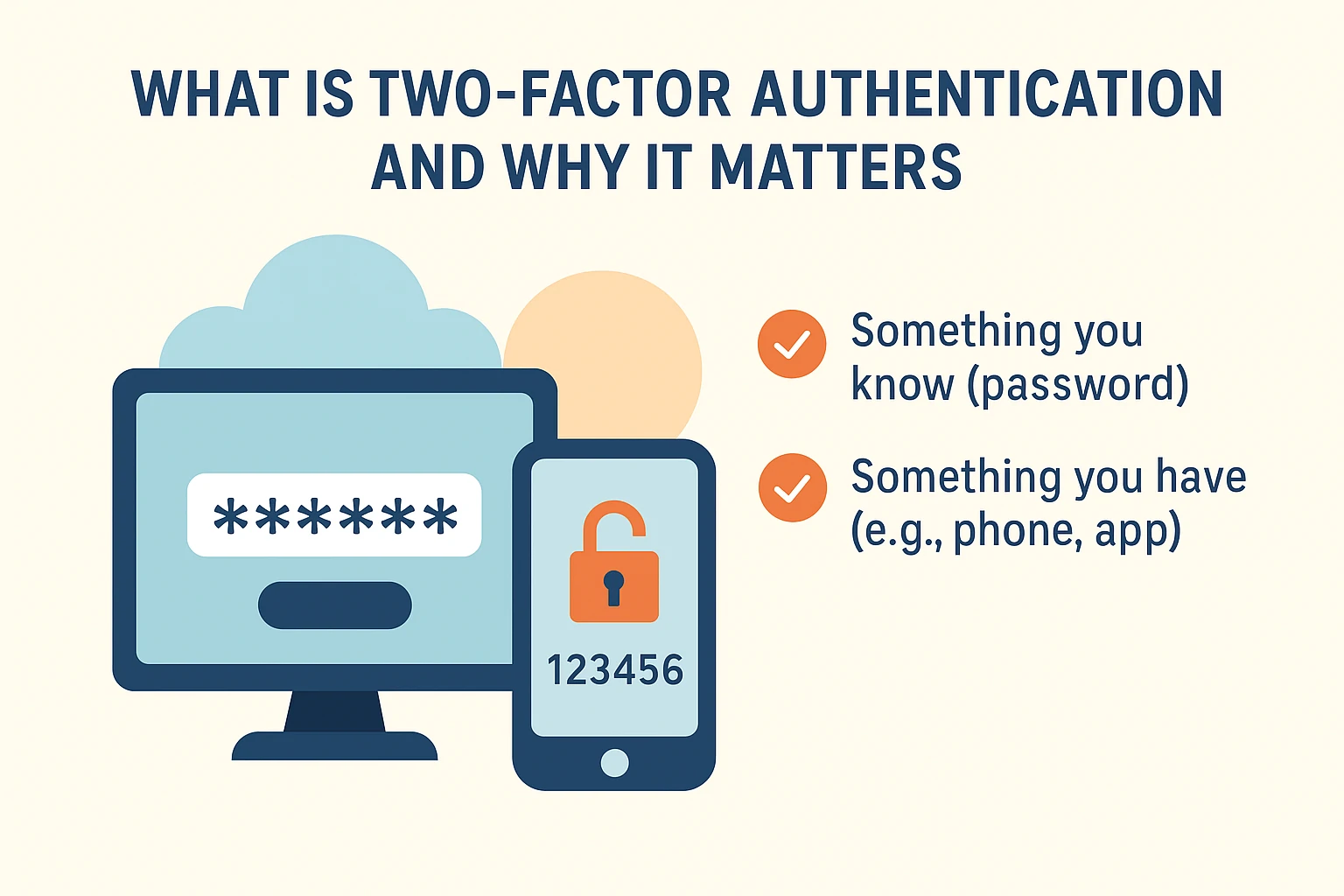
Two-factor authentication—also called 2FA or two-step verification—adds an extra layer of protection beyond your password. It combines:
Anúncios
-
Something you know (your password)
-
Something you have (for example, your phone, an authenticator app, or a security key)
This means that even if someone obtains your password, they still can’t access your account without the second factor. For example, Google Authenticator uses time-based one-time passwords (TOTP) to generate codes that validate your login attempt.
According to the official documentation of Google LLC, once you enable 2-Step Verification, you log in using your password and a second step, such as a prompt, passkey, or code generated by an app.
Anúncios
The benefits of enabling 2FA
-
Dramatically reduces the risk of unauthorized access even if a password is compromised.
-
Makes your account far less attractive to opportunistic attackers.
-
Helps protect sensitive data, financial accounts, and personal identity.
-
Builds trust (especially in a business or brand context) when you demonstrate you’re security-conscious.
Common misconception
Some people believe that enabling 2FA is too much work or unnecessary—however modern services make it relatively easy, and the security upside is large. For instance, one Reddit user noted how stuck they got when relying on a single verification method:
“Same problem here I’m locked out … I blame Google for this.”
In short: 2FA isn’t just good practice—it is essential for the tech-savvy user.
Step-by-Step: Enabling 2FA on Major Services

Below we walk through how to enable 2FA on three of the most commonly used platforms. Although your exact screens may differ slightly (based on updates or region) the core steps remain the same.
1. Google (e.g., Gmail, YouTube, Google Workspace)
For services under the Google umbrella you follow a path like: My Account → Security → 2-Step Verification.
How to enable:
-
Sign into your Google account.
-
Go to Security. Under “How you sign in to Google”, select Turn on 2-Step Verification.
-
Confirm your password if prompted.
-
Choose your second step: e.g., Google prompts (push notification), authentication app, voice or text message.
-
Follow the prompts to register your method (scan a QR code for an authenticator app, or add a phone number).
-
(Recommended) Generate backup codes and store them in a safe place. These codes help you regain access if your device is lost.
Why this matters: Because Google handles email, documents, YouTube, and more, enabling 2FA covers a wide range of services at once.
2. Microsoft / Office 365
If you’re using services from Microsoft Corporation such as Outlook, Microsoft 365, Teams, etc., the process for 2FA (sometimes called MFA – multi-factor authentication) is similar.
How to enable:
-
Use the Microsoft Authenticator app (or another app of your choice).
-
Access your Microsoft account’s Security or Additional security options.
-
Enable “two-step verification” and follow the wizard to link your phone/app.
-
The linked video titled “Setting up Two-factor authentication (2FA) using Microsoft Authenticator app” walks through exactly this.
Also read: Should I store passwords in browser?
Best practices:
-
Use an authenticator app rather than SMS when possible (SMS can be vulnerable to SIM-swap attacks).
-
Mark trusted devices so you don’t have to verify every login (while avoiding checking that option on shared/public devices).
-
Keep an updated backup phone or device in case your primary is lost.
3. YouTube (and other creator-oriented platforms)
Even if you primarily use your Google account for YouTube, the specific creator experience may require additional steps. For example, to protect a channel it’s wise to ensure 2FA is enabled for the Google account and any linked tools.
How to enable:
-
Log into YouTube, click your profile → Manage your Google Account → Security.
-
Locate 2-Step Verification and click Get Started.
-
Add your phone number or authenticator app.
-
Verify the setup, and optionally generate backup codes.
-
Consider adding a physical security key for maximum protection (especially for large channels).
Why this is essential:
Creators with large followings are high-value targets. As a Reddit user wrote:
“Imagine if you have 500,000 subs and get hacked … 2step verification would have helped them.”
What to Do After You Enable 2FA

Enabling 2FA is not the end of the journey—it’s a strong milestone. Here are post-setup best practices:
-
Store backup codes securely (e.g., in an encrypted file, offline wipe-proof location).
-
Review your authorized devices regularly: remove devices you no longer use.
-
Update your recovery information (alternate email, phone) in case your primary device is lost.
-
Consider a hardware security key (e.g., USB-C, Lightning) for top-tier protection.
-
Be aware of phishing attacks: attackers may try to trick you into giving up your second factor. Push notifications can reduce risk of SMS hijack. Google documentation warns SMS is less secure.
-
Keep your apps and OS updated: authenticator apps rely on system integrity.
-
Test your recovery process now while you can still access your account. Simulate “what if my phone is lost” to ensure you have a fallback.
Also read: Do cookies save passwords?
Frequently Asked Questions (FAQ)
Q. Can I skip setting up 2FA?
Yes—you can skip it where it is optional. But doing so leaves your account far more vulnerable. For services like Google, you’ll typically have the option and may later be forced to turn it on.
Q. Is SMS good enough?
Better than nothing, but not ideal. SMS codes can be intercepted via SIM-swap or phone porting. Authenticator apps or security keys are more resilient.
Q. What if I lose my phone or the authenticator app device?
That’s why backup codes and recovery methods exist. Store them safely and test that you can use them. Some services let you register secondary devices or a hardware key.
Q. Does 2FA affect login convenience?
Slightly—yes, you’ll need to take an extra step during login. But many services let you mark a device as “trusted” so you don’t need to verify every time. The small trade-off is more than worth the protection you gain.
Final Thoughts
In the technology space, security is not optional. As a copy-writer with two decades in tech, I’ve seen how minor oversights (weak passwords, outdated processes, missing 2FA) lead to major breaches. Activating two-factor authentication is one of the smartest and most immediate moves you can make.
For your audience at ADCOD, positioning 2FA as both “easy to activate today” and “vital for tomorrow” is key. Emphasize the minimal time investment vs the major risk reduction. Use the steps above to direct readers into action: pick a service, enable 2FA, store backups, and stay vigilant.
Also read: Where do I enter the bypass code?